

Register a Bridge API key with Privy
Bridge API keys are managed in the Privy Dashboard under Onramps > Bridge > Configure. Bridge issues separate keys for its sandbox and production environments.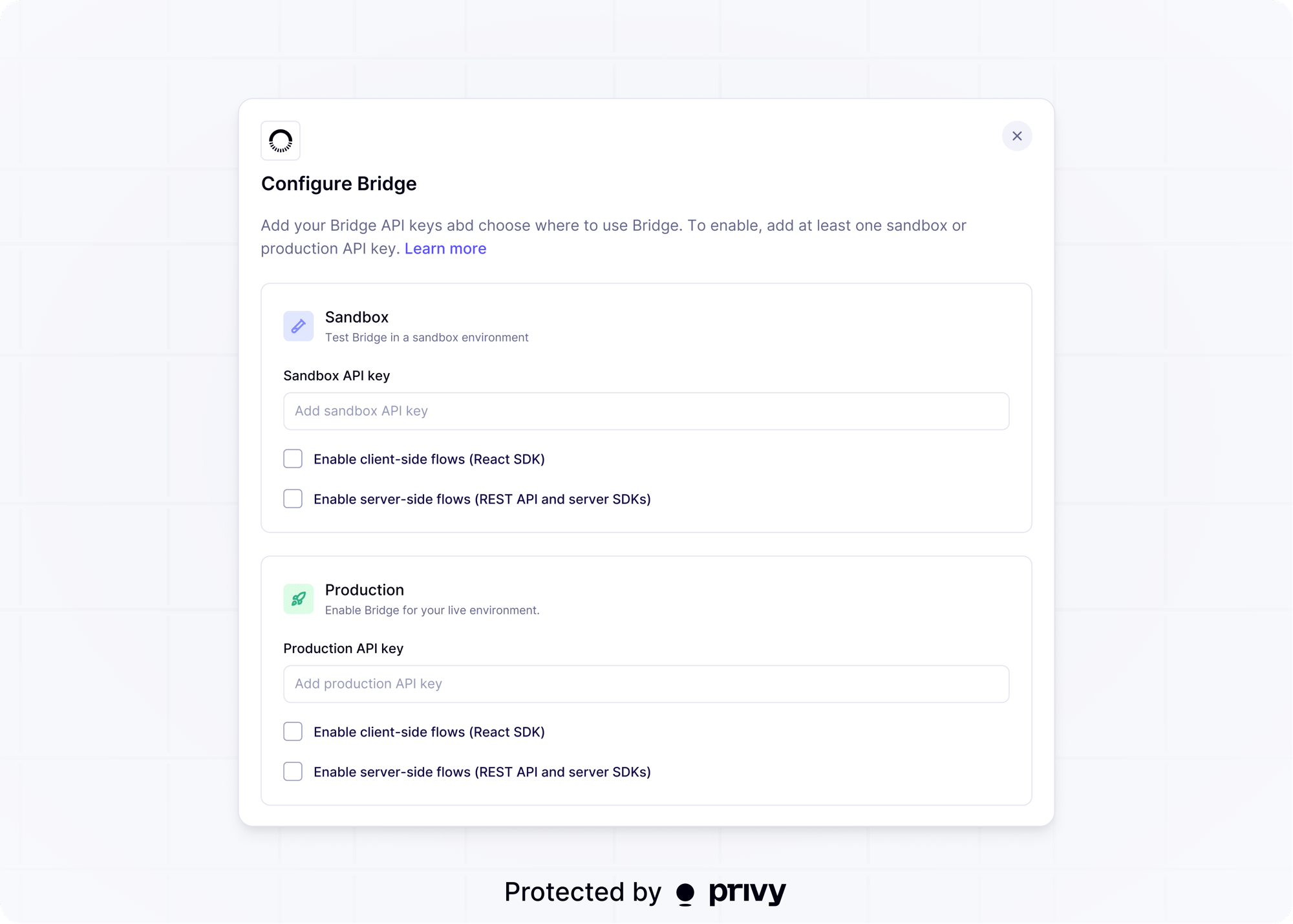
Sandbox
Privy can auto-generate a sandbox key for you, so no Bridge account is required to start testing. Select Enable server-side flows (REST API) or Enable client-side flows (React SDK), depending on where your app initiates Bridge flows, and save.Production
- If your app does not already have a Bridge account, sign up here.
- Create a production API key in the Bridge dashboard.
- Register the key in the Privy Dashboard, select Enable server-side flows (REST API) or Enable client-side flows (React SDK), and save.
The sandbox environment does not move real money and does not require real identity or bank
information. It is not a testnet: wallets and assets used in sandbox flows are still mainnet. See
Bridge’s guide to setting up a sandbox
environment
for what Bridge simulates, including simulated KYC
approvals.
Environments
Every KYC and KYB request specifies which Bridge environment to use through theenvironment field, which defaults to production. A request only succeeds if an API key is registered for that environment.
Next steps
KYC
Verify an individual user
KYB
Verify an organization