

Once a user enrolls in MFA, it will remain enabled even if you disable MFA for your app. Users
must manually disable MFA on their wallets if they wish to remove it.
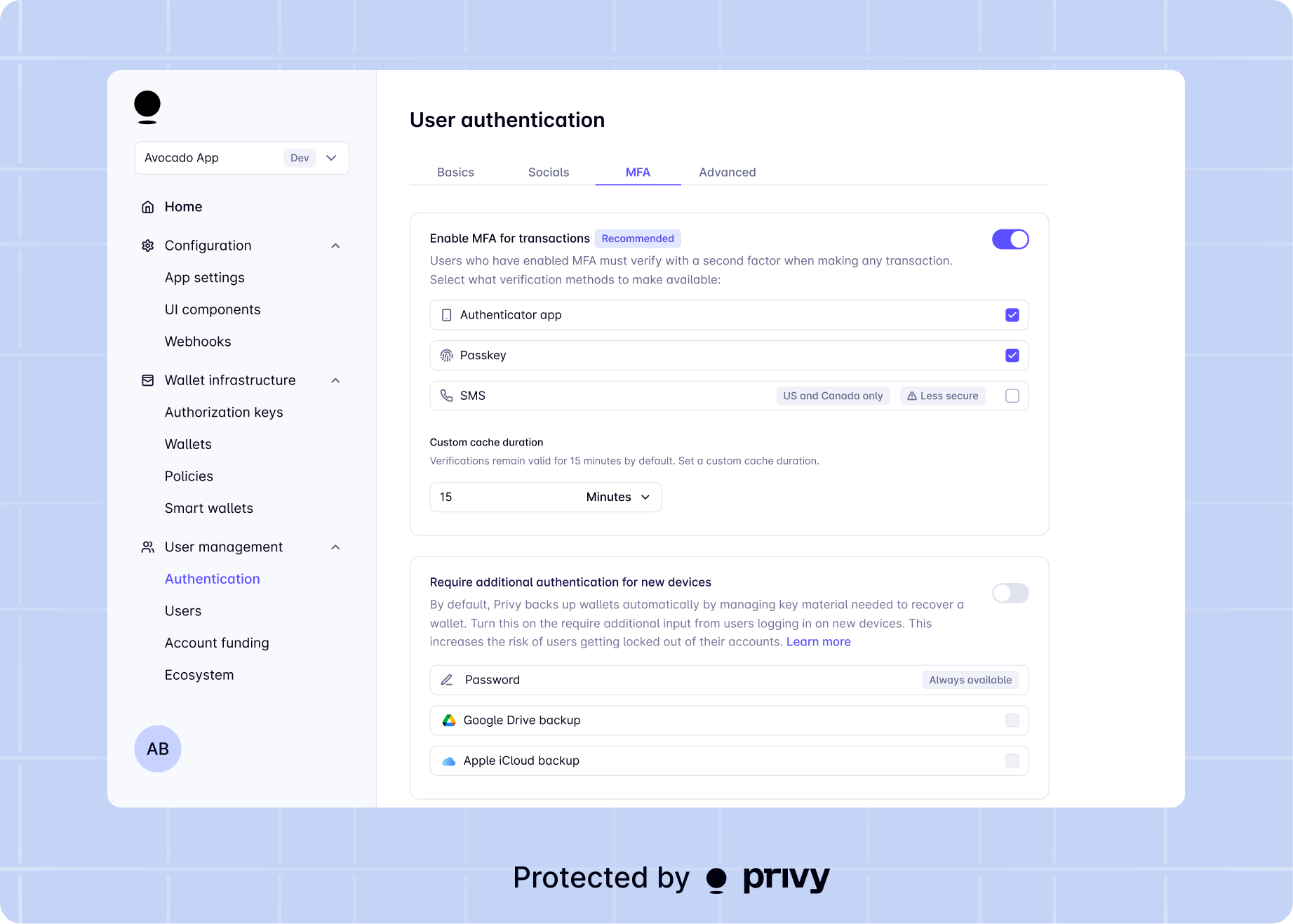
- If your app has SMS enabled as a login method, you may not enable SMS as an MFA method as well. With SMS login enabled, SMS can already be used as the primary factor to authenticate the user for access to their wallet; it cannot be enabled as an additional factor as well.
- To use passkeys as an MFA method, you must also enable passkeys as a login method
Implementation options
Privy offers two approaches to implement wallet MFA:- Building custom UIs - Build your own MFA flows with full control over the user experience. This approach works with all Privy SDKs.
- Using Privy’s default UIs - Available for React and React Native only. Privy handles the UI components for enrollment and verification.